Reporting Errors
When Roo Code encounters an error, you can export detailed diagnostic information to share with the support team. This helps resolve issues faster by providing complete context about what went wrong.
Why It Matters
Error reports with full diagnostic data cut resolution time dramatically. Instead of back-and-forth questions about your setup, extension version, or what you were doing, the support team gets everything they need in one go. The detailed export includes your full task history, configuration, and environment, which are critical for reproducing and fixing issues.
Accessing Error Details
When an error appears, click the "Details" link next to the error message. This opens a modal with diagnostic information and export options.

The Details link reveals two export options for sharing error information with support.
Choosing the Right Export Option
The Error Details modal offers two buttons, each serving different needs:
-
Copy basic error info - Copies essential error details to your clipboard:
- Timestamp and extension version
- Provider and model being used
- The specific error message
Use when: You want to quickly share the error in Discord or a brief support email.
-
Get detailed error info - Opens a full diagnostic report with:
- Everything from basic info
- Complete task history showing all messages and actions
- Full configuration and environment details
- Provider-specific settings
Use when: The support team needs to reproduce the issue or you're filing a GitHub issue.
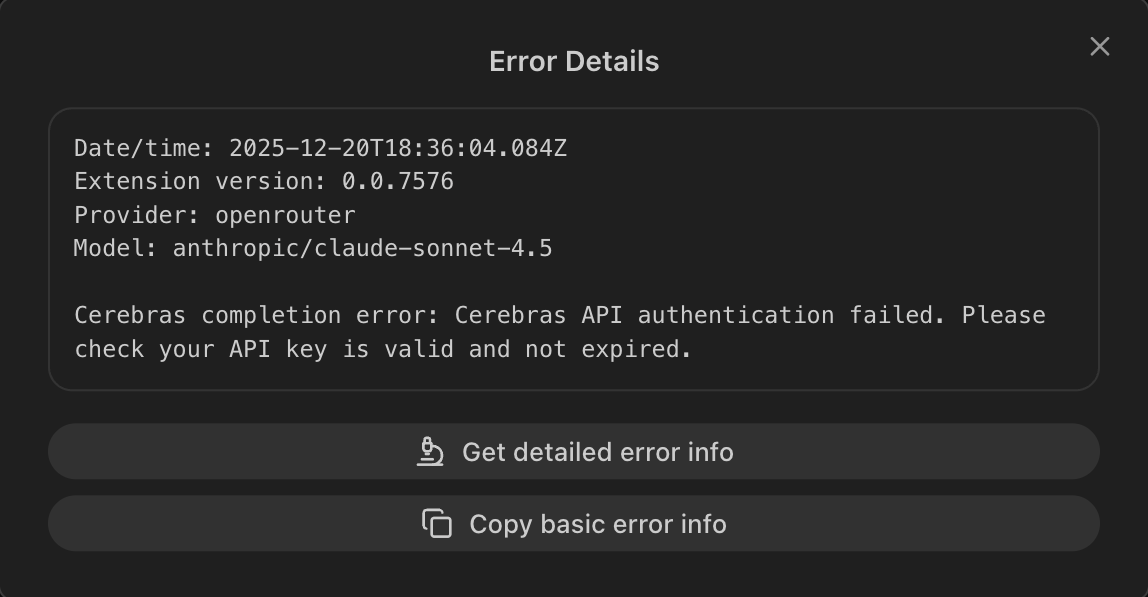
Choose basic for quick reports or detailed for thorough diagnostics.
Sharing with Support
After copying error information:
- Email: Send to support@roocode.com
- Discord: Share in the #support channel
- GitHub Issues: File at github.com/RooCodeInc/Roo-Code/issues
Include a brief description of what you were trying to do when the error occurred. The exported diagnostics handle the technical details.
What You Can't Do
Error exports don't include your actual code or file contents—only metadata about the task. If the support team needs to see specific code that triggered the error, you'll need to share that separately.
When to Use Each Option
| Scenario | Use This |
|---|---|
| Quick question in Discord | Copy basic error info |
| Filing a GitHub issue | Get detailed error info |
| Support email for recurring error | Get detailed error info |
| Asking about a specific error message | Copy basic error info |
| Error that only happens in certain conditions | Get detailed error info |
The detailed report's task history helps the team understand the sequence of events leading to the error—invaluable for intermittent or complex issues.